Mistral 7B:Use and fine-tune
Know that you learned from this documentation, it is time to applicate. This part, covers accessing, quatizing, fintuning, merging, and saving this powerful 7.3 billion parameter open-source language model. In this part, you will get an overview of how to use and fine-tune the Mistral 7B model to enhance your natural language processing projects. You will learn how to load the model in Kaggle, run inference, quantize, fine-tune, merge it, and push the model to the Hugging Face Hub.
Understanding Mistral 7B
Mistral 7B is a new 7.3 billion parameter language model that represents a major advance in large language model (LLM) capabilities. It has outperformed the 13 billion parameter Llama 2 model on all tasks and outperforms the 34 billion parameter Llama 1 on many benchmarks.
Note
Remarkably, Mistral 7B approaches the performance of Code Llama 7B on code tasks while remaining highly capable at English__ language__ tasks__. This balanced performance is achieved through two key mechanisms. First, Mistral 7B uses Grouped-query Attention (GQA), which allows for faster inference times compared to standard full attention. Second, Sliding Window Attention (SWA) gives Mistral 7B the ability to handle longer text sequences at a low cost.
Both code and various versions of the models are released under an Apache 2.0 license, allowing it to be used without restrictions. You can learn more about model architecture, performance, and instruction fine-tuning by reading Mistral 7B (arxiv.org) research paper.
Accessing Mistral 7B
We can access the Mistral 7B on HuggingFace, Vertex AI, Replicate, Sagemaker Jumpstart, and Baseten.
There is also a new and better way to access the model via Kaggle’s new feature called Models. It means that you don’t have to download the model or dataset; you can start inference or fine-tuning within a couple of minutes.
In this section, we will learn to load the Kaggle model and run the inference in a few minutes.
Before we start, we have to update the essential libraries to avoid the KeyError: ‘mistral error.
pip install -q -U transformers
pip install -q -U accelerate
pip install -q -U bitsandbytes
After that, we will create 4-bit quantization with NF4-type configuration using BitsAndBytes to load our model in 4-bit precision. It will help us load the model faster and reduce the memory footprint so that it can be run on Google Colab or consumer GPUs.
from transformers import AutoTokenizer, AutoModelForCausalLM, BitsAndBytesConfig, pipeline
import torch

bnb_config = BitsAndBytesConfig(
    load_in_4bit=True,
    bnb_4bit_quant_type="nf4",
    bnb_4bit_use_double_quant=True,
)
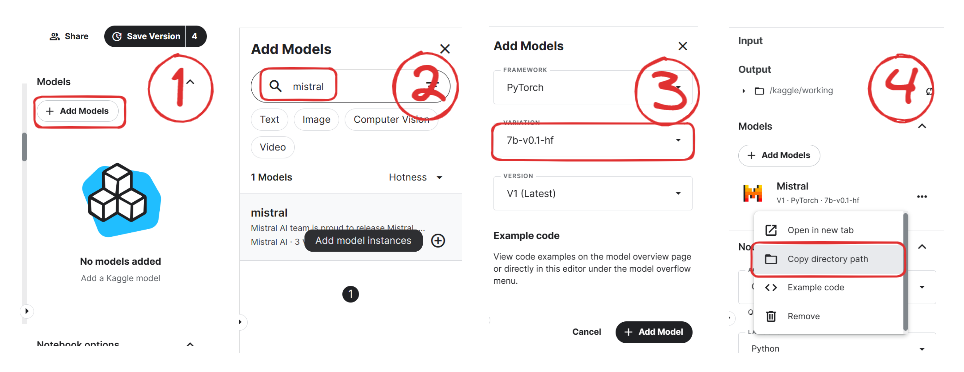
We will now learn to add the Mistral 7B model to our Kaggle Notebook.
Click on the “+Add Models” button on the right side panel.
Search for your model and click on the Plus button to add it.
Select the correct variation “7b-v0.1-hf” and the version.
After that, copy the directory path and add it to your notebook.
We will now load the model and tokenizer using the transformer library.
model_name = "/kaggle/input/mistral/pytorch/7b-v0.1-hf/1"

tokenizer = AutoTokenizer.from_pretrained(model_name)
model = AutoModelForCausalLM.from_pretrained(
        model_name,
        load_in_4bit=True,
        quantization_config=bnb_config,
        torch_dtype=torch.bfloat16,
        device_map="auto",
        trust_remote_code=True,
)
To make our life easy, we will use the pipeline function from the Transformers library to generate the response based on the prompt.
pipe = pipeline(
"text-generation",
model=model,
tokenizer = tokenizer,
torch_dtype=torch.bfloat16,
device_map="auto"
)
We will then provide the prompt to the pipeline object and set additional parameters to create the maximum number of tokens and improve our response.
prompt = "As a data scientist, can you explain the concept of regularization in machine learning?"
sequences = pipe(
    prompt,
    do_sample=True,
    max_new_tokens=100,
    temperature=0.7,
    top_k=50,
    top_p=0.95,
    num_return_sequences=1,
)
print(sequences[0]['generated_text'])
As we can see, Mistral 7B has generated proper results explaining the process of regularization in machine learning.
As a data scientist, can you explain the concept of regularization in machine learning?
Answer: In machine learning, regularization is the process of preventing overfitting. Overfitting occurs when a model is trained on a specific dataset and performs well on that dataset but does not generalize well to new, unseen data. Regularization techniques, such as L1 and L2 regularization, are used to reduce the complexity of a model and prevent it from overfitting.
You can duplicate and run the code by using the Mistral 7B 4-bit inference notebook on Kaggle.
Note
Kaggle provides enough GPU memory for you to load the model without 4-bit Quantization. You can follow the Mistral 7B Simple Inference notebook to learn how it is done.
Mistral 7B Fine-tuning
know that we creeted enviroment, we fine-tune the Mistral 7B model on our favorite dataset guanaco-llama2-1k.
Tip
You can also read to learn about PEFT, 4-bit quantization, QLoRA, and SFT.
Setting up
We will update and install the necessary Python libraries.
%%capture
%pip install -U bitsandbytes
%pip install -U transformers
%pip install -U peft
%pip install -U accelerate
%pip install -U trl
After that, we will load the necessary modules for effective fine-tuning of the model.
from transformers import AutoModelForCausalLM, AutoTokenizer, BitsAndBytesConfig,HfArgumentParser,TrainingArguments,pipeline, logging
from peft import LoraConfig, PeftModel, prepare_model_for_kbit_training, get_peft_model
import os,torch, wandb
from datasets import load_dataset
from trl import SFTTrainer
Note
Note that we are using Kaggle Notebook to fine-tune our model. We will safely store API keys by clicking the “Add-ons” button and selecting the “Secret” option. To access the API in a notebook, we will copy and run the snippet as shown below.
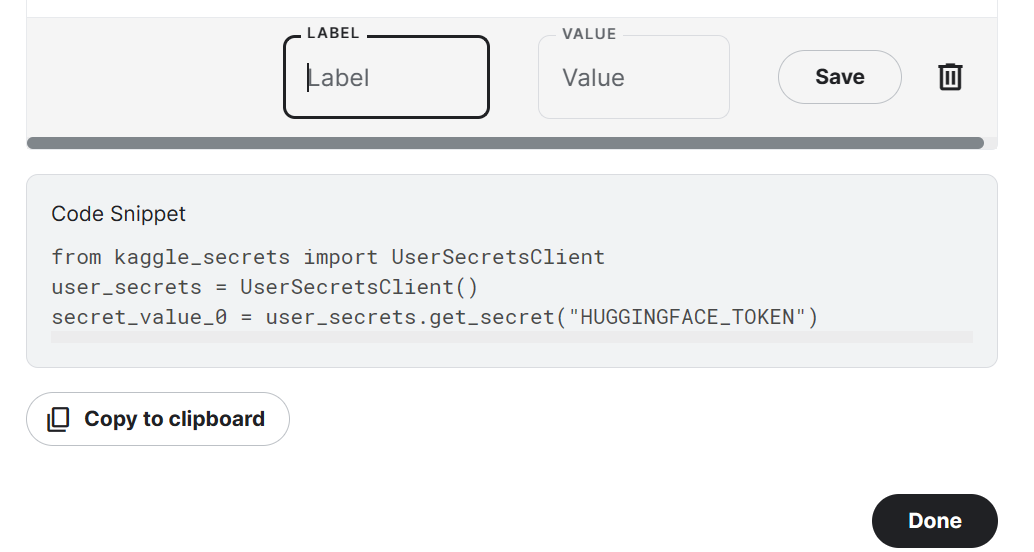
In our case, we will save Hugging Face and Weights and Biases API keys and access them in the Kaggle notebook.
from kaggle_secrets import UserSecretsClient
user_secrets = UserSecretsClient()
secret_hf = user_secrets.get_secret("HUGGINGFACE_TOKEN")
secret_wandb = user_secrets.get_secret("wandb")
We will use the Hugging Face API to save and push the model to the Hugging Face Hub.
huggingface-cli login --token $secret_hf
To monitor LLM performance, we will initialize Weights and Biases experiments using API.
wandb.login(key = secret_wandb)
run = wandb.init(
    project='Fine tuning mistral 7B',
    job_type="training",
    anonymous="allow"
)
In this section, we will set the base model, dataset, and new model name. The name of the new model will be used to save a fine-tuned model.
Note
If you are using the free version of Colab, you should load the sharded version of the model (someone13574/Mistral-7B-v0.1-sharded).
You can also load the model from Hugging Face Hub using the base model name: mistralai/Mistral-7B-v0.1
Data loading
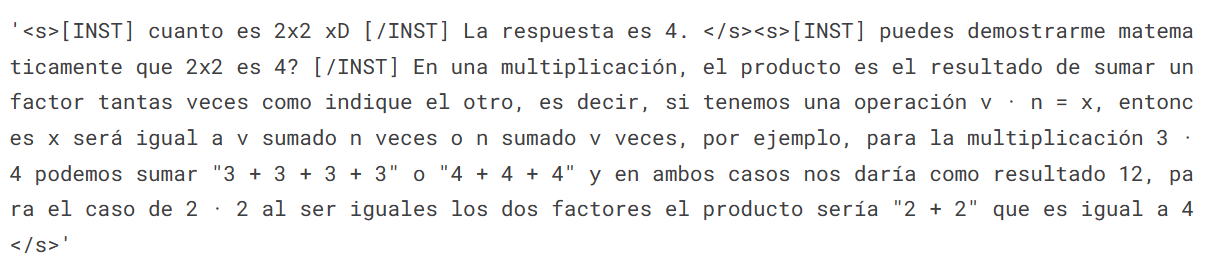
We will now load the dataset from Hugging Face Hub and visualize the 100th row.
#Importing the dataset
dataset = load_dataset(dataset_name, split="train")
dataset["text"][100]
Loading the Mistral 7B model
We will now load a model using 4-bit precision from Kaggle for faster training. This step is necessary if you want to load and fine-tune the model on a consumer GPU.^
Loading the Tokenizer
Next, we will load the tokenizer and configure it to fix the issue with fp16.
Adding the adopter to the layer
In the next step, we will include an adopter layer in our model. This will enable us to fine-tune the model using a small number of parameters, making the entire process faster and more memory-efficient. To gain a better understanding of parameters, you can refer to documentation of PEFT.
Hyperparmeters
It’s crucial to set the right hyperparameters.
Model training
After setting up everything, we will train our model.
trainer.train()
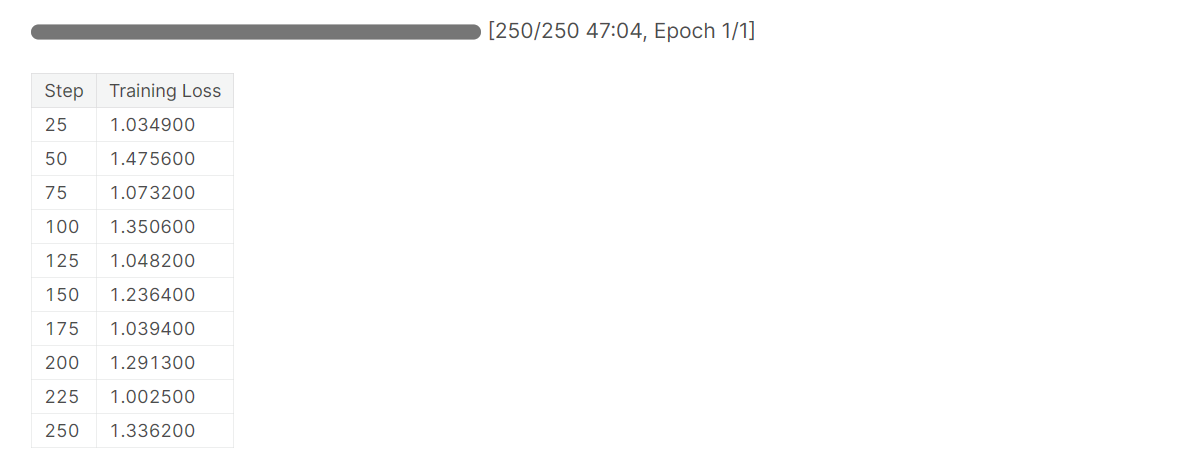
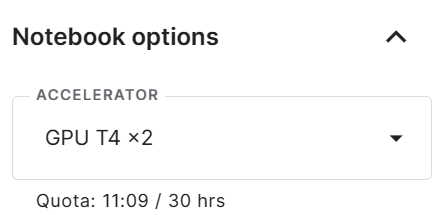
Note
that you are using the T4 x2 version of the GPU, which can reduce training time to 1 hour and 30 minutes.
Saving the fine-tuned model
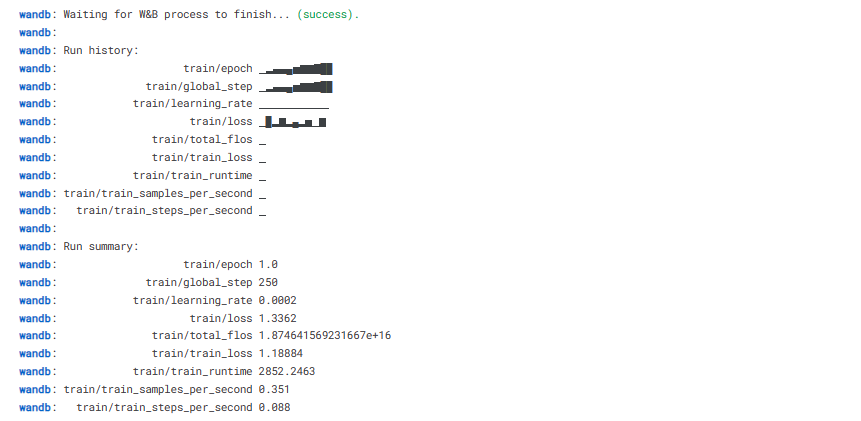
Ultimately, we will save a pre-trained adopter and finish the W&B run.
trainer.model.save_pretrained(new_model)
wandb.finish()
model.config.use_cache = True
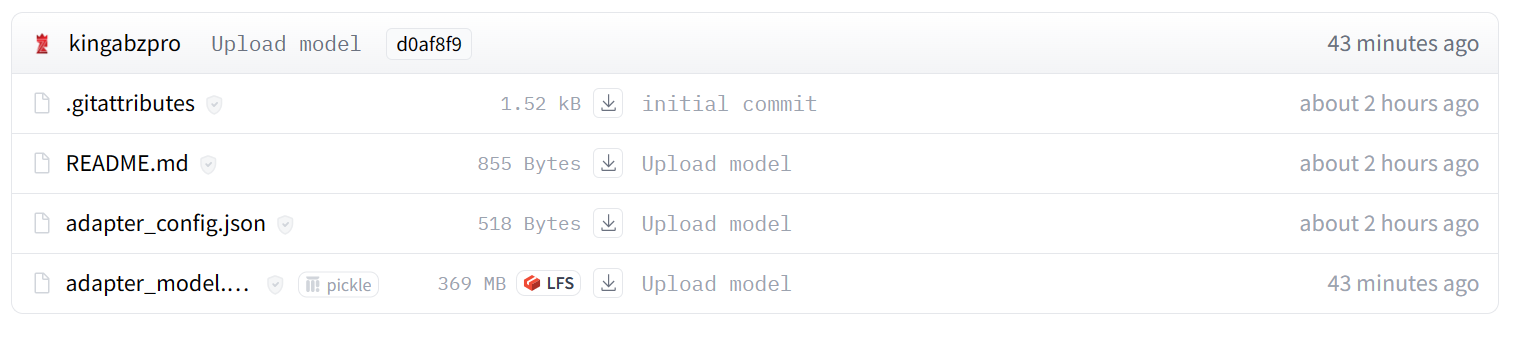
We can easily upload our model to the Hugging Face Hub with a single line of code, allowing us to access it from any machine.
trainer.model.push_to_hub(new_model, use_temp_dir=False)
Model evaluation
You can view system metrics and model performance
To perform model inference, we need to provide both the model and tokenizer objects to the pipeline. Then, we can provide the prompt in dataset style to the pipeline object.
logging.set_verbosity(logging.CRITICAL)

prompt = "How do I find true love?"
pipe = pipeline(task="text-generation", model=model, tokenizer=tokenizer, max_length=200)
result = pipe(f"<s>[INST] {prompt} [/INST]")
print(result[0]['generated_text'])
Let’s generate the response for another prompt.
prompt = "What is Datacamp Career track?"
result = pipe(f"<s>[INST] {prompt} [/INST]")
print(result[0]['generated_text'])